Blog / Siebel

Installing & Configuring the Desktop Integration Siebel Adapter (DISA)

· Todd Ruppenthal

Install

  1. Download the DISA installer from Oracle Support (Desktop_Integration_Siebel_Agent.exe)

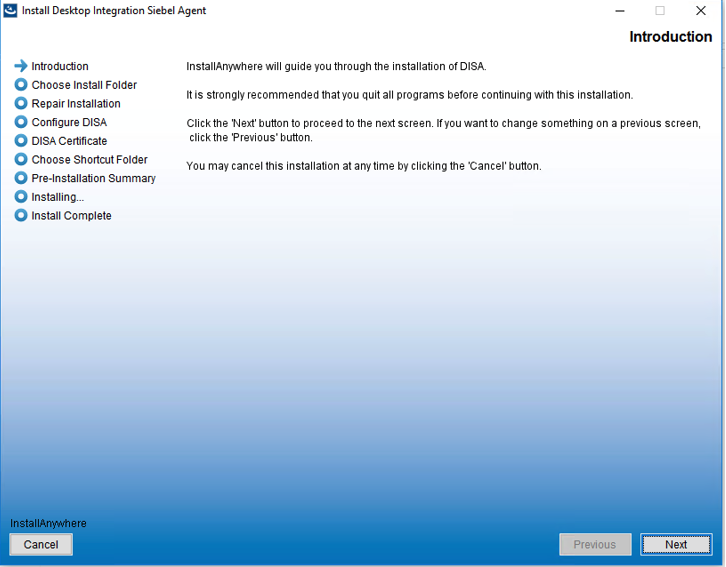
  2. Unzip installation files and run the Desktop_Integration_Siebel_Agent.exe file
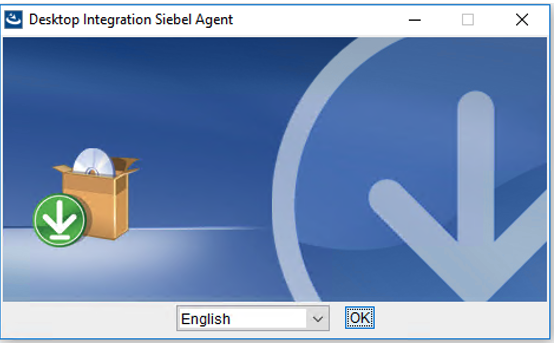
Screenshot 1, Installing & Configuring the Desktop Integration Siebel Adapter (DISA) (after: Install 1. Download the DISA installer from Oracle Support…)

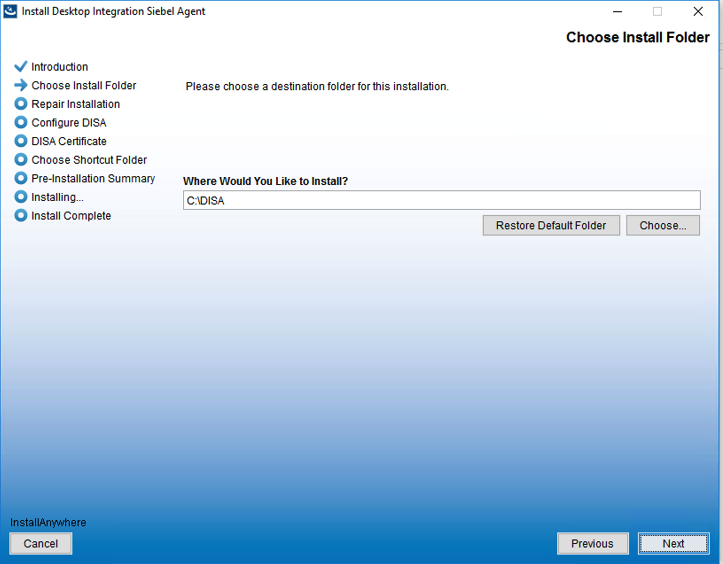
Screenshot 2, Installing & Configuring the Desktop Integration Siebel Adapter (DISA) (after: Install 1. Download the DISA installer from Oracle Support…)

Screenshot 3, Installing & Configuring the Desktop Integration Siebel Adapter (DISA) (after: Install 1. Download the DISA installer from Oracle Support…)

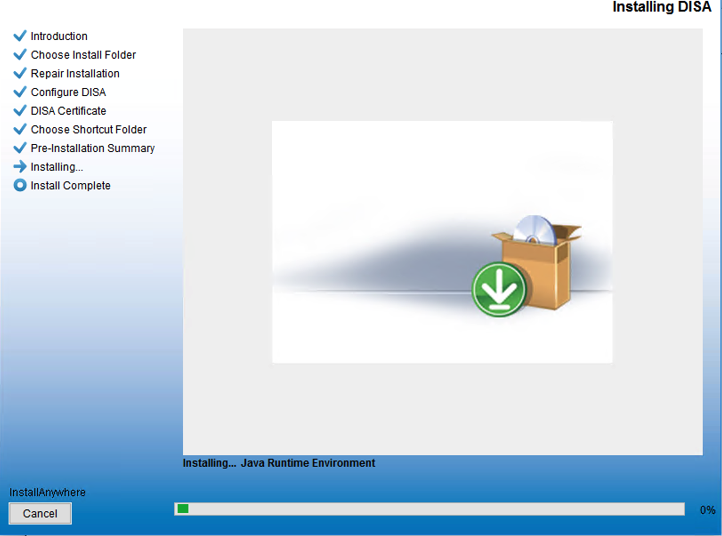
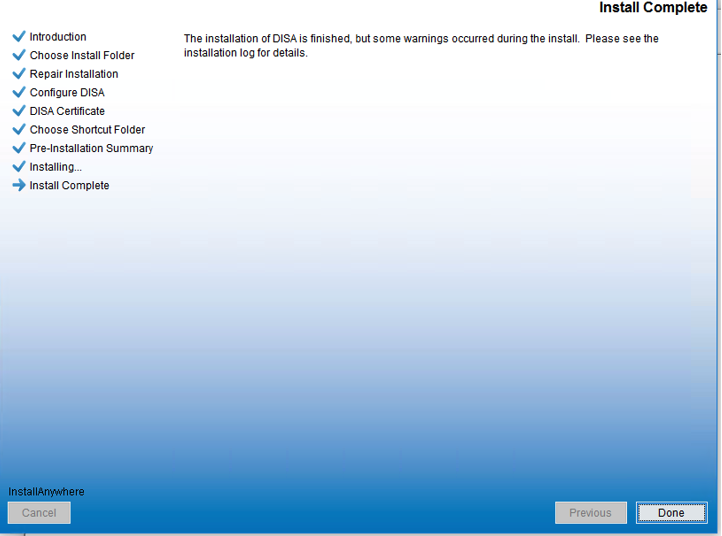
Screenshot 4, Installing & Configuring the Desktop Integration Siebel Adapter (DISA) (after: Install 1. Download the DISA installer from Oracle Support…)

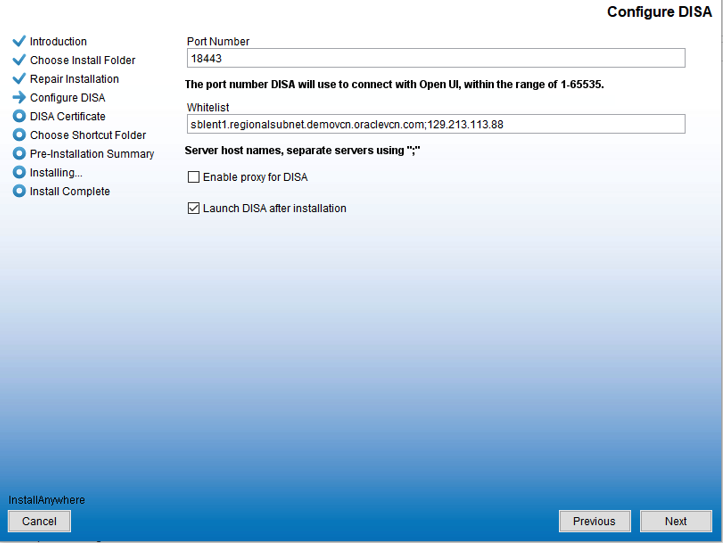
  1. Enter the default port number 18443 in the Port Number field. Enter the hostname and IP address of the Siebel AI server in the Whitelist field.
Screenshot 5, Installing & Configuring the Desktop Integration Siebel Adapter (DISA) (after: 3. Enter the default port number 18443 in the Port Number field. Enter the…)

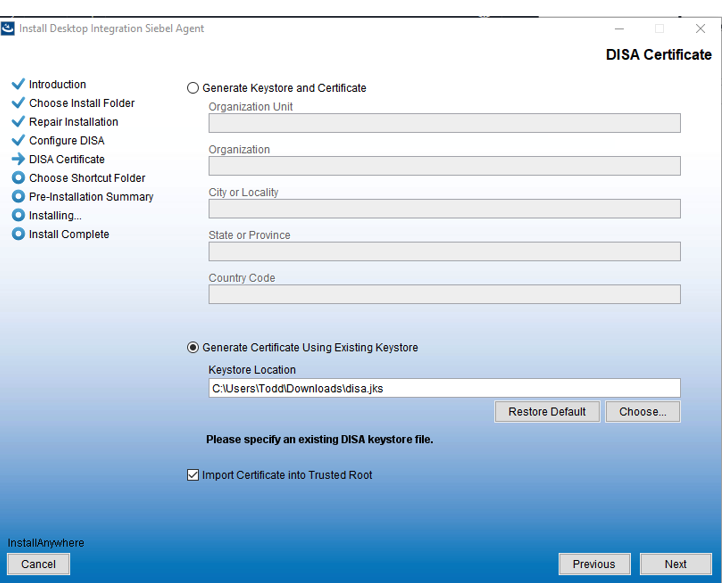
  1. Select the Generate Certificate Using Existing Keystore option and select the disa.jks file provided with the installation.
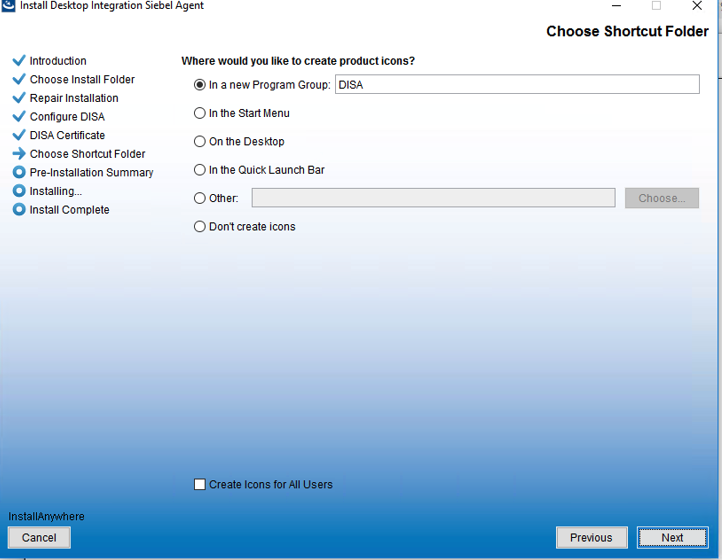
Screenshot 6, Installing & Configuring the Desktop Integration Siebel Adapter (DISA) (after: 4. Select the Generate Certificate Using Existing Keystore option and select…)

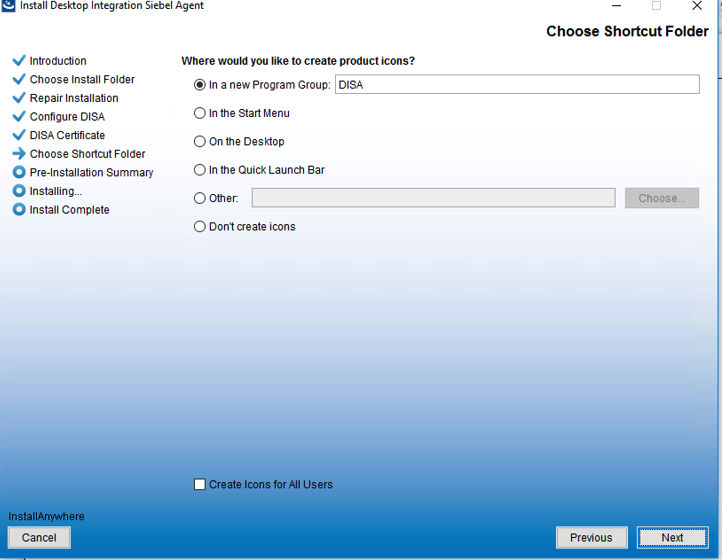
Screenshot 7, Installing & Configuring the Desktop Integration Siebel Adapter (DISA) (after: 4. Select the Generate Certificate Using Existing Keystore option and select…)

Screenshot 8, Installing & Configuring the Desktop Integration Siebel Adapter (DISA) (after: 4. Select the Generate Certificate Using Existing Keystore option and select…)

Screenshot 9, Installing & Configuring the Desktop Integration Siebel Adapter (DISA) (after: 4. Select the Generate Certificate Using Existing Keystore option and select…)

  1. Open a command window as Administrator

  2. Run the following command to import the ca cert provided with the installation into the JVM truststore

C:\DISA\jre\bin\keytool.exe -import -noprompt -trustcacerts -alias ca -file “C:\Users\Todd\Downloads\ca.cer” -keystore “C:\DISA\jre\lib\security\cacerts” -storepass changeit

  1. Restart DISA

  2. Logout and log back into Siebel

  3. Try to open an attachment without getting an error message. The Edit button on the popup window should be enabled.

Configure

  1. After installing DISA, you must update the following parameters in the unitconfig.xml file. This file is located in folder: C:\DISA\DesktopIntSiebelAgent\plugins\SiebelTestAutomation:

a. URL

b. USERNAME

c. APPLICATIONTYPE_BROWSER
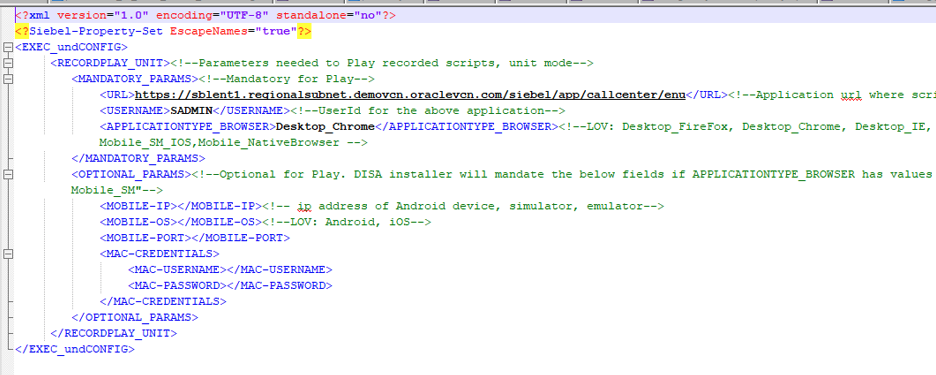
Screenshot 10, Installing & Configuring the Desktop Integration Siebel Adapter (DISA) (after: 5. Open a command window as Administrator 6. Run the following command to…)

  1. Only certain browsers are supported and settings for each must be updated prior to use. In our tests, I used Chrome so I performed the following actions:

To run the recorded scripts using Chrome, download the chromedriver.exe file from https://sites.google.com/a/

chromium.org/chromedriver/downloads and copy it to \DesktopIntSiebelAgent\plugins\SiebelTestAutomation\Drivers location.

Note: It is recommended to download the driver file after checking the browser version.

For more information: https://docs.oracle.com/cd/F14158_09/books/TestGuide/usage-pattern-tracking-and-conversion-to-keyword-scripts.html#c_Browser_Configuration_Settings_adu1009769

Get in Touch

Let us know how we can help you achieve your goals. We’re looking forward to working together.

Cookie preferences

Choose which cookies and similar technologies we may use. You can change this at any time from “Cookie settings” in the footer. See our Privacy Policy.

Cookie categories
Strictly necessary Needed for the site to work and to remember your cookie choice. Always on.
Always on
Helps us understand how visitors use the site so we can improve it.
Used to measure and personalize advertising. We don’t use these today.