Blog / Siebel

Installing Jenkins

· Todd Ruppenthal · Tags: siebeltestautomation

  1. Download the Jenkins installation files here: https://jenkins.io/download/

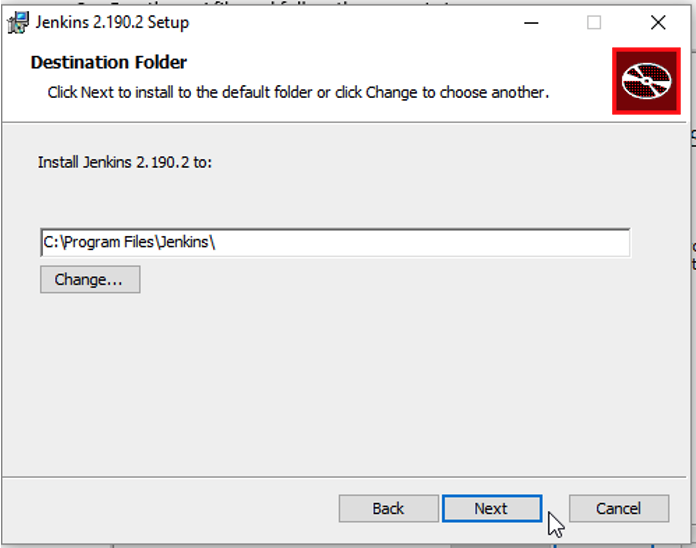
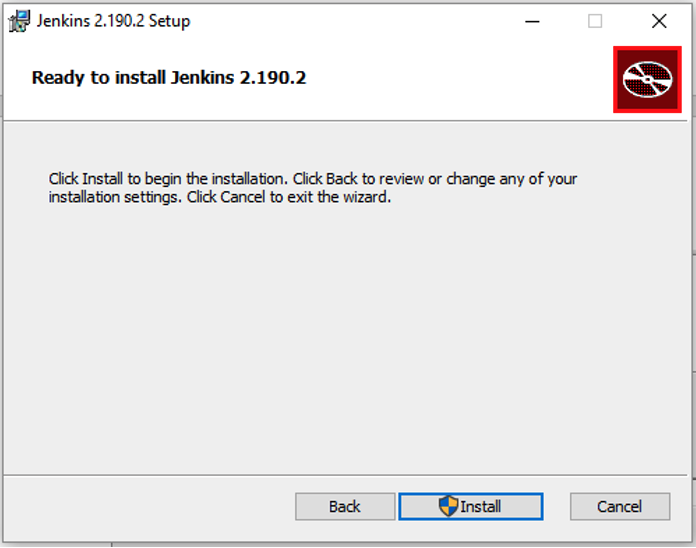
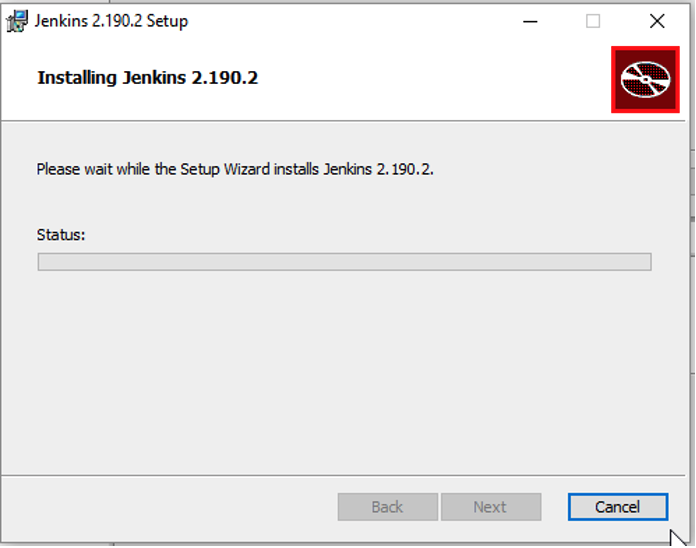
  2. Run the msi file and follow the prompts.
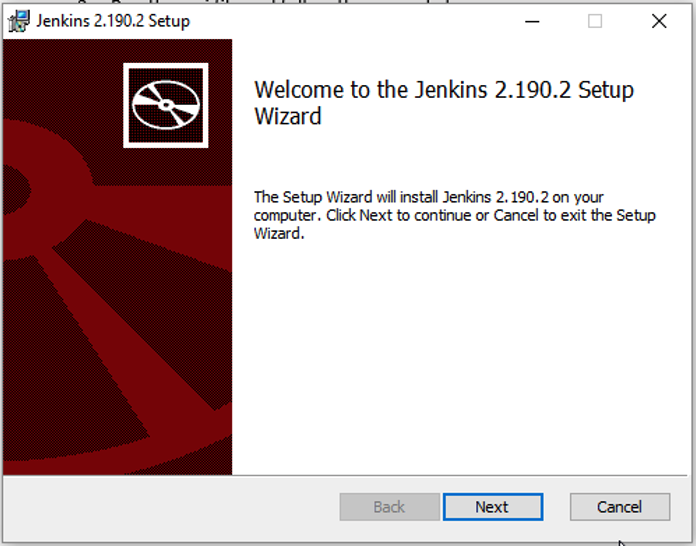
Screenshot 1, Installing Jenkins (after: 1. Download the Jenkins installation files here:  2. Run the msi file and…)

Screenshot 2, Installing Jenkins (after: 1. Download the Jenkins installation files here:  2. Run the msi file and…)

Screenshot 3, Installing Jenkins (after: 1. Download the Jenkins installation files here:  2. Run the msi file and…)

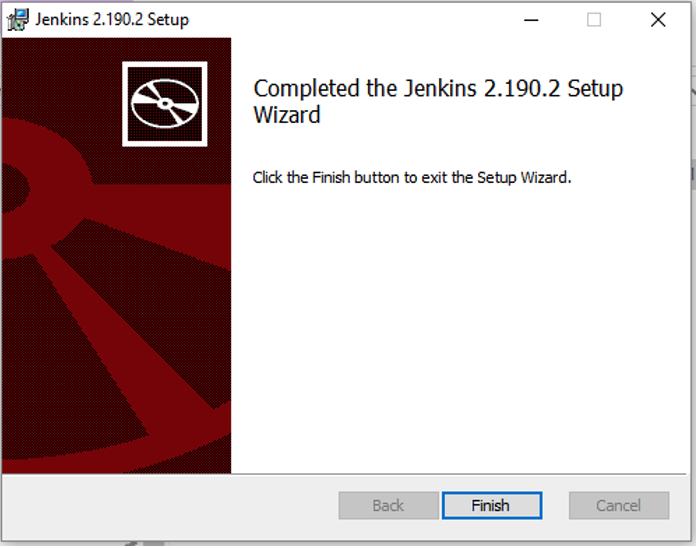
Screenshot 4, Installing Jenkins (after: 1. Download the Jenkins installation files here:  2. Run the msi file and…)

Screenshot 5, Installing Jenkins (after: 1. Download the Jenkins installation files here:  2. Run the msi file and…)

  1. Click Finish to complete the installation
Screenshot 6, Installing Jenkins (after: 3. Click Finish to complete the installation)

Screenshot 7, Installing Jenkins (after: 3. Click Finish to complete the installation)

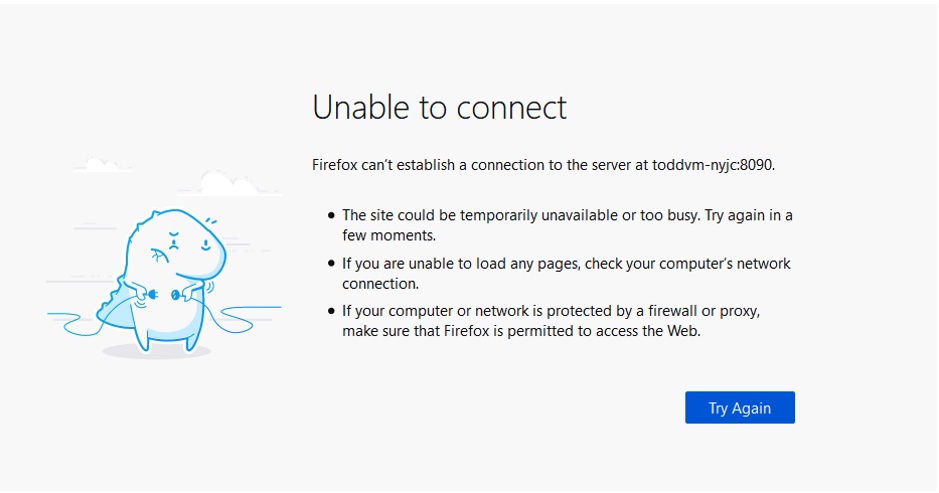
  1. After the install was completed, Chrome opened and navigated to this URL: http://localhost:8080/. However, there was a message that said the page could not be displayed. I saw the above message in the Siebel documentation.
Screenshot 8, Installing Jenkins (after: 4. After the install was completed, Chrome opened and navigated to this URL: …)

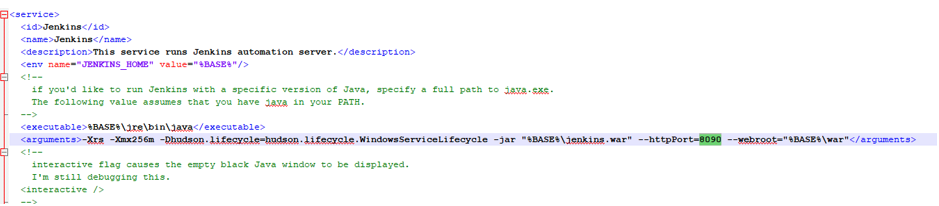
  1. I assumed the port number needed to be changed. I modified the jenkins.xml file located here: C:\Program Files\Jenkins to use port 8090. However, when I went to restart the Jenkins Windows service, I saw that it was stopped. After all that, I realized that port 8080 was probably fine.
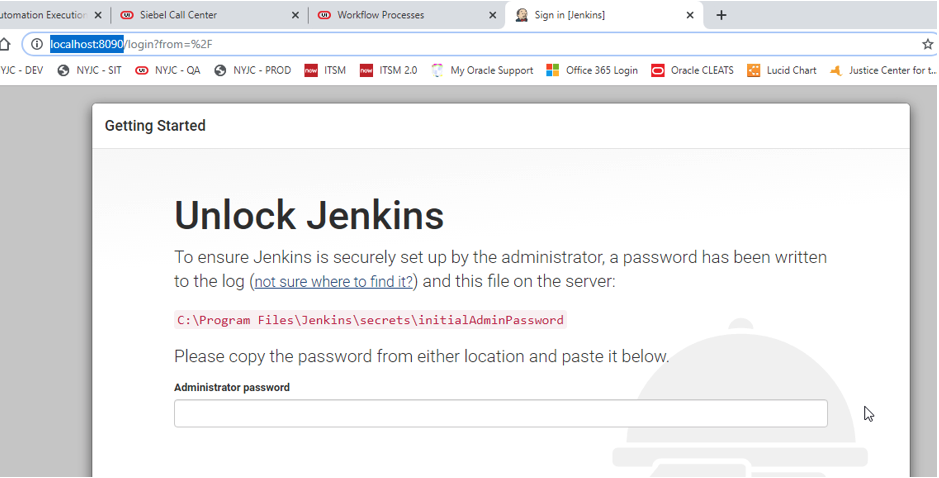
Screenshot 9, Installing Jenkins (after: 5. I assumed the port number needed to be changed. I modified the jenkins.xml…)

  1. I left the port as 8090 and then started the Jenkins service. When I returned to the browser and refreshed, I saw the screen above. I opened the initialAdminPassword file, copied and pasted the value (05a04954a7e44d2e81343fc188f8d749) in the field, then hit enter.
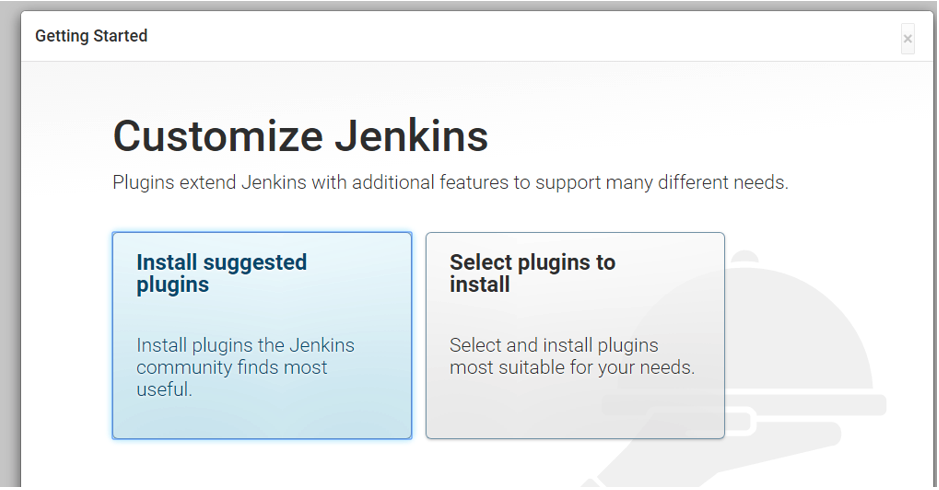
Screenshot 10, Installing Jenkins (after: 6. I left the port as 8090 and then started the Jenkins service. When I…)

Screenshot 11, Installing Jenkins (after: 6. I left the port as 8090 and then started the Jenkins service. When I…)

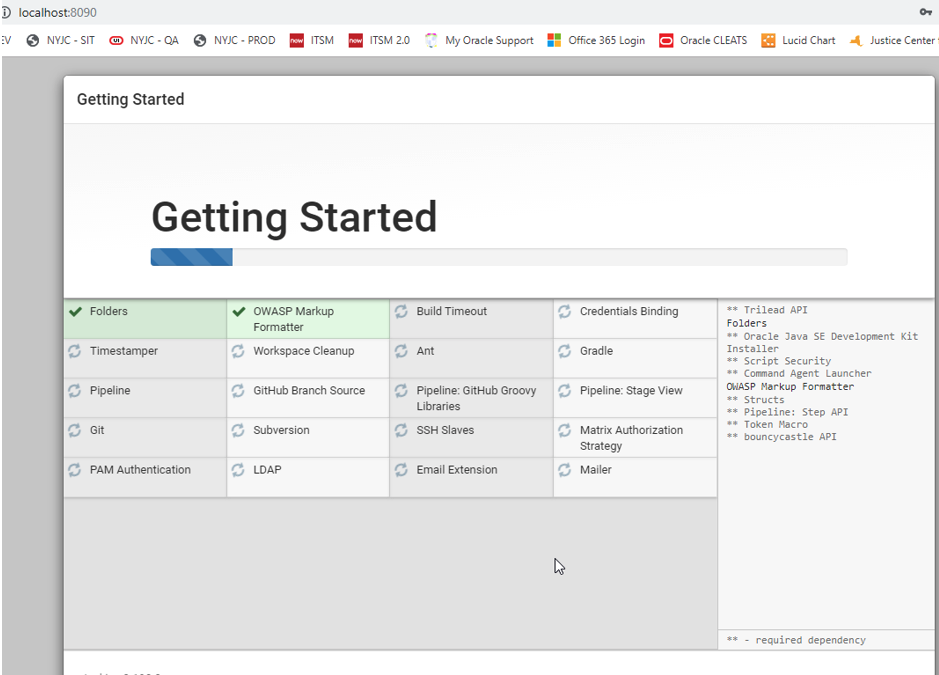
  1. This page was next. I chose “Select plugins to install” but then I couldn’t see where I could select the plugins I needed (per the Siebel documentation). Went back and chose “Install suggested plugins” thinking it would give me a review screen before proceeding. Nope, it just started installing.
Screenshot 12, Installing Jenkins (after: 7. This page was next. I chose “Select plugins to install” but then I couldn’t…)

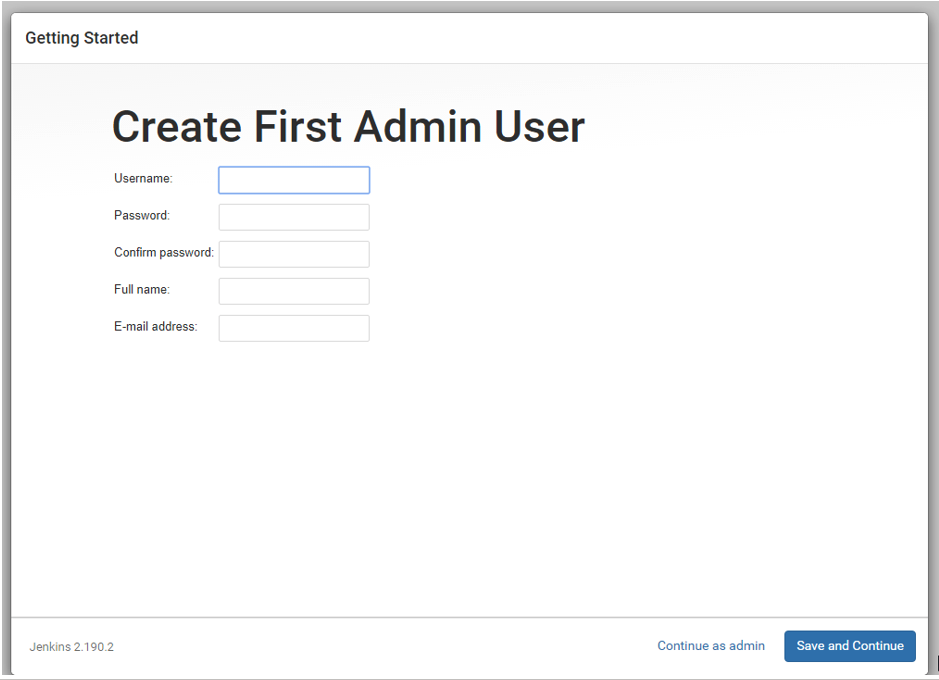
  1. After it was done got this screen. I chose the Continue as admin option.
Screenshot 13, Installing Jenkins (after: 8. After it was done got this screen. I chose the Continue as admin option.)

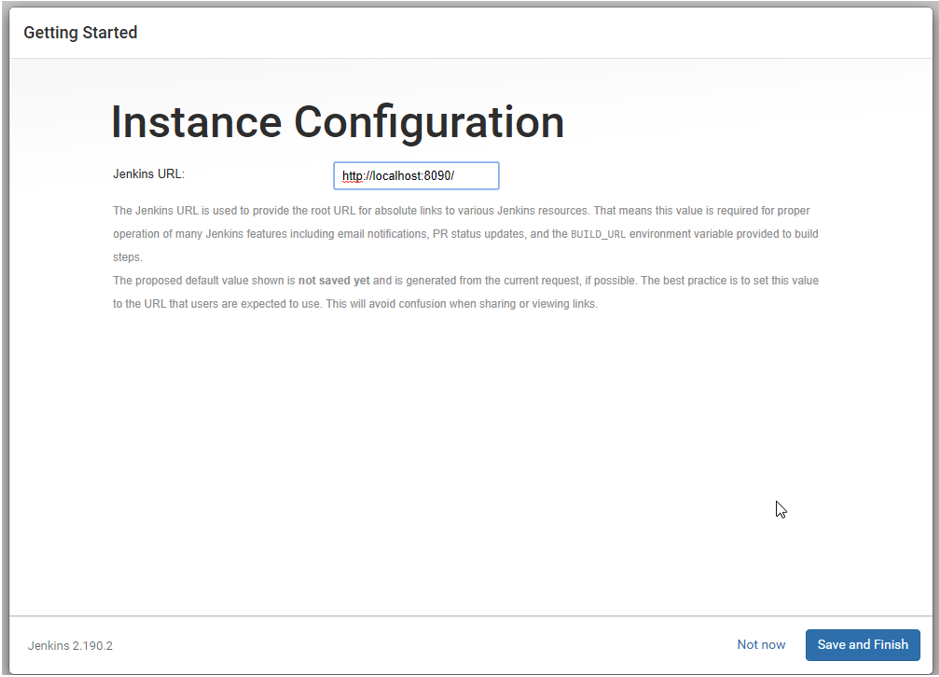
  1. Chose Save and Finish

Screenshot 14, Installing Jenkins (after: 9. Chose Save and Finish)

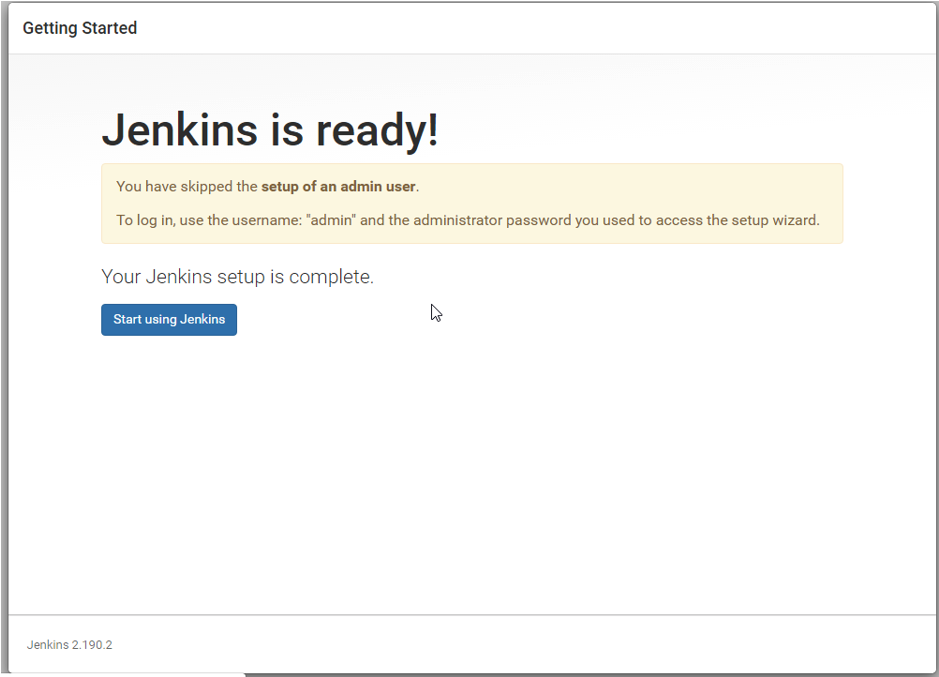
  1. Clicked Start using Jenkins

Get in Touch

Let us know how we can help you achieve your goals. We’re looking forward to working together.

Cookie preferences

Choose which cookies and similar technologies we may use. You can change this at any time from “Cookie settings” in the footer. See our Privacy Policy.

Cookie categories
Strictly necessary Needed for the site to work and to remember your cookie choice. Always on.
Always on
Helps us understand how visitors use the site so we can improve it.
Used to measure and personalize advertising. We don’t use these today.